This page explains how to set up a SmartWiFi router using the Deco App for both fixed and wireless broadband
You should know
- Setting up SmartWiFi requires an iOS or Android smartphone and the Deco App – a free download on iOS or Android
- A TP-Link ID is required to use the Deco App
- A TP-Link Deco Router is required
- Most TP-Link Deco Routers are capable of self-setup without the Deco App – this is referred to as Plug n’ Play
- If your Legacy router (e.g. HG659, DN8245, Ultrahub) are deemed faulty, delete your Deco network and setup a new one using your new SmartWiFi Deco.
- To complete these work instructions, you need to have your Deco router turned on and connected correctly
- You must have an active VoIP service to use VoIP landline
- Screenshots and images may vary depending on the version of the Deco App software
Steps
- Open the Deco App on your smartphone
You will be prompted to login or register a new account - Once logged in, tap Let's Begin
The Deco App will scan for available Deco's
Note: Bluetooth needs to be enabled to proceed - Based on the search outcome, perform one of the following actions:
- Connection successful - Go to Step 8
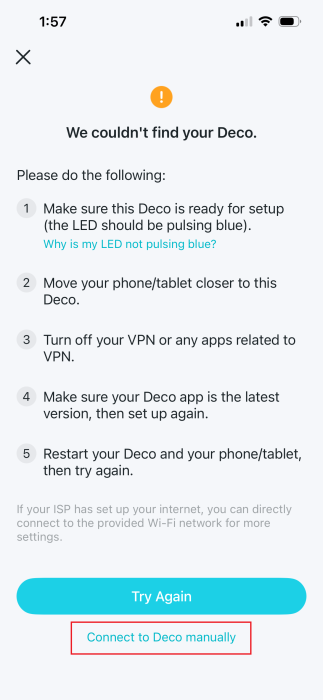
- Unable to find or connect - Continue to the next step
- Different Deco found - Click Cancel, then continue to the next step
- Tap Connect to Deco manually

- Using your mobile camera, scan the QR code on the bottom of your router
You will be automatically connected to the network - In the Deco App, tap I have connected
- The Deco has been found screen appears, tap Set Up The Deco
- Based on the router type, perform one of the following:
- TP-Link X53-DSL - Proceed to the next step
- Other - Proceed to Step 14
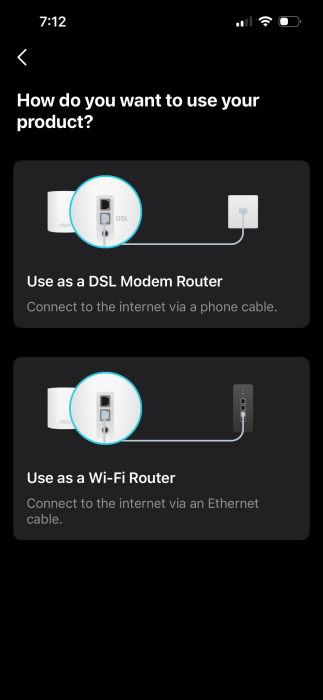
- You will be asked to choose a product mode: DSL Modem Router or WiFi Router. Based on your connection type, select one of the following:
- Fibre or HFC - Use as a WiFi Router
- ADSL or VDSL - Use as a DSL Modem Router
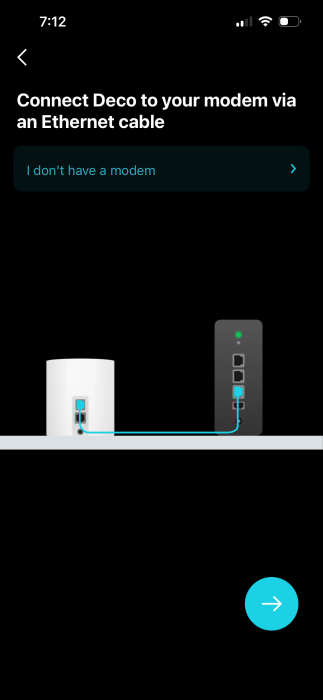
A prompt appears to connect the router to your modem
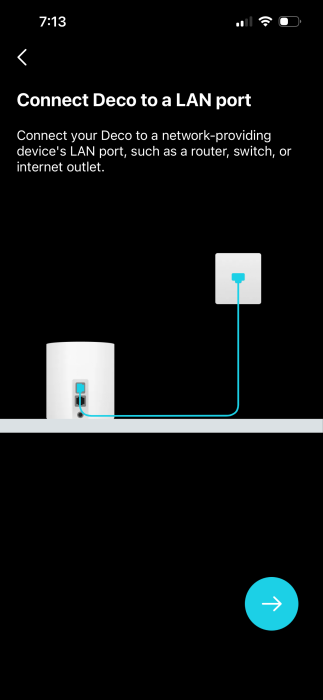
- Tap I don't have a modem.A prompt appears to connect to an ONT LAN port or a HFC Cable Modem LAN port
Note: If you are using a VDSL connection, you will need to connect to the jackpoint
If you are using an ADSL connection, you will need to connect to a filter and then into a jackpoint
- Tap the Blue Arrow
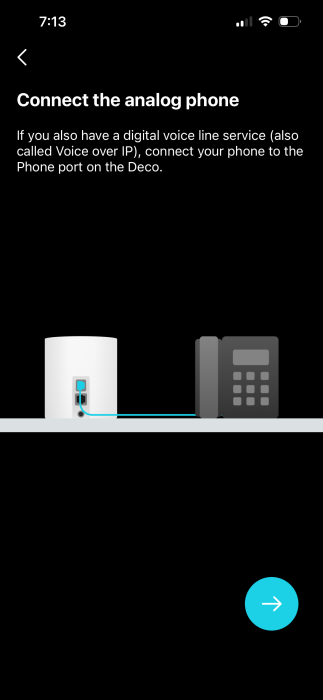
A prompt appears asking you to connect a phone. This should be a DECT VoIP-capable handset (If you have one)
- Tap the Blue Arrow
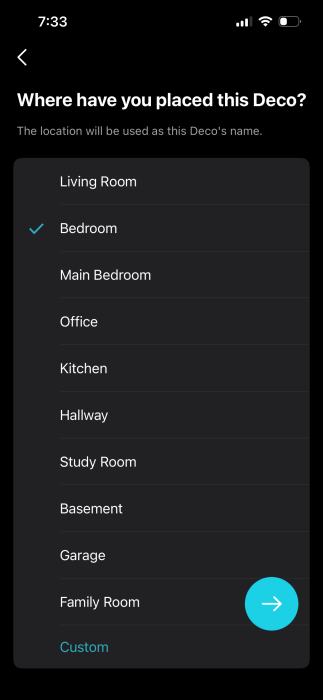
A prompt appears to select Deco location (e.g. Living Room or Bedroom)
- Select your Deco Location, tap the Blue Arrow
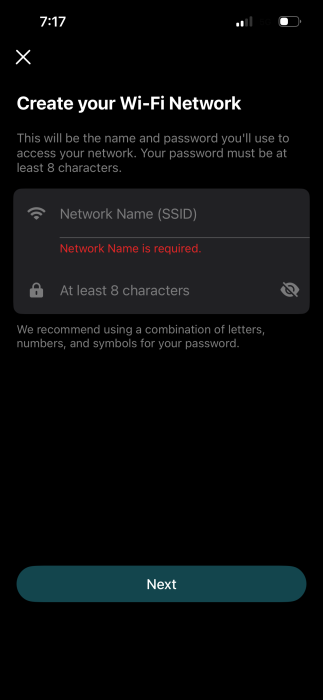
- Create your Wi-Fi network
- Tap the Blue Arrow
SmartWiFi Network setup is completed
If you would like to add SuperWiFi (additional Deco units), refer to Setup Superwifi units