This page explains how to set up SuperWiFi using the Deco App for both fixed and wireless broadband
You should know
Ensure your SmartWiFi network has already been setup
via the Deco App before proceeding with these work instructions.
Steps
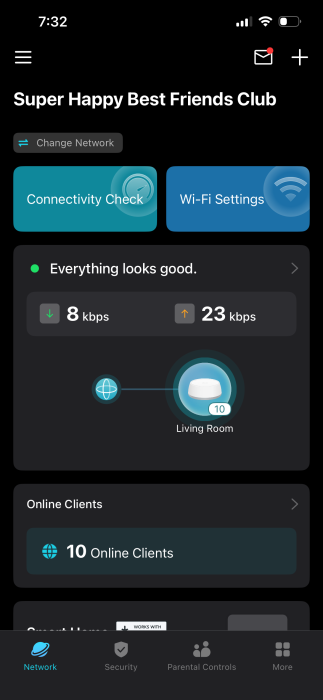
- Open the Deco App
The network overview will appear
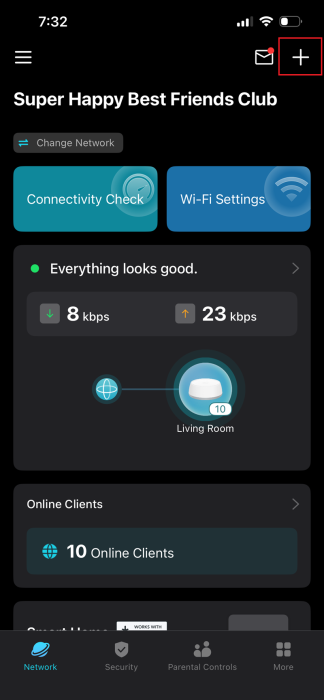
- In the top right hand corner, click on the '+' symbol

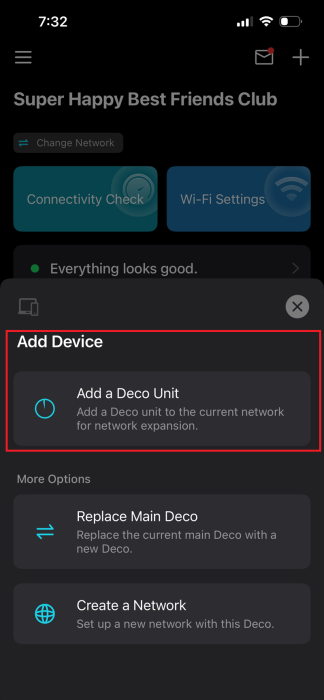
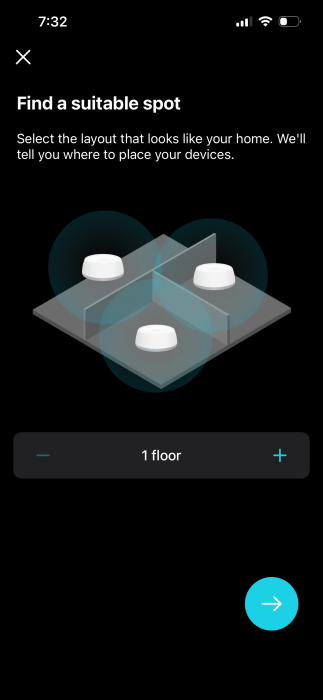
- Select Add a Deco UnitA prompt appears to find a suitable spot for the Deco unit
- Tap the Blue Arrow
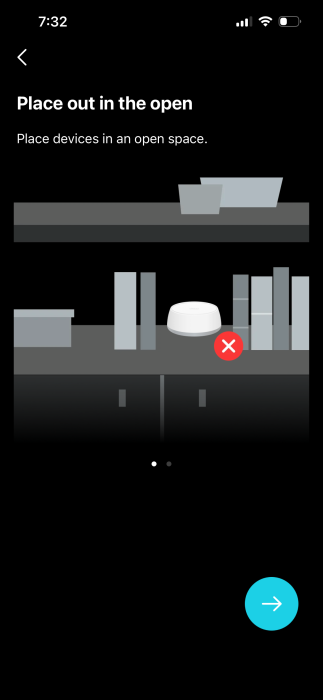
A prompt appears to place the Deco unit out in the open
- Tap the Blue Arrow
A prompt appears to place away from large appliances.
- Tap the Blue Arrow
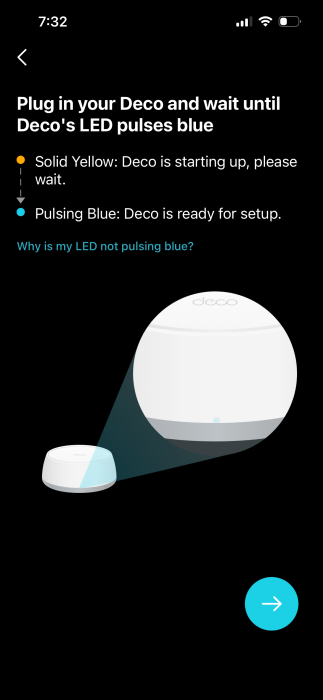
A prompt appears to plug the Deco unit's power in and wait until it pulses blue
- Tap the Blue Arrow
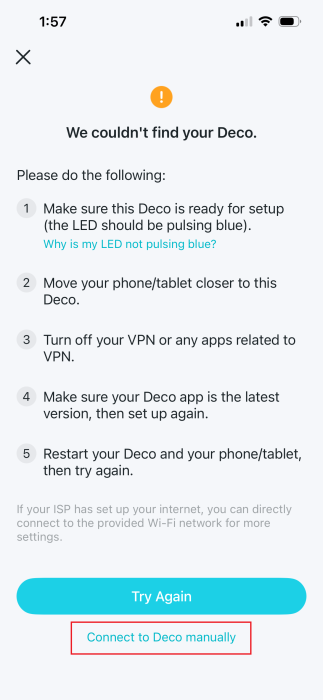
The Deco App will search for available Decos - Based on the search outcome, perform one of the following actions:
- Connection successful - Go to Step 12
- Unable to find or connect - Continue to the next step
- Different Deco found - Click Cancel, then continue to the next step
- Click Connect to Deco manually
- Using your mobile camera, scan the QR code on the bottom of the router
You will be automatically connected to the network - In the Deco App, click I have connected
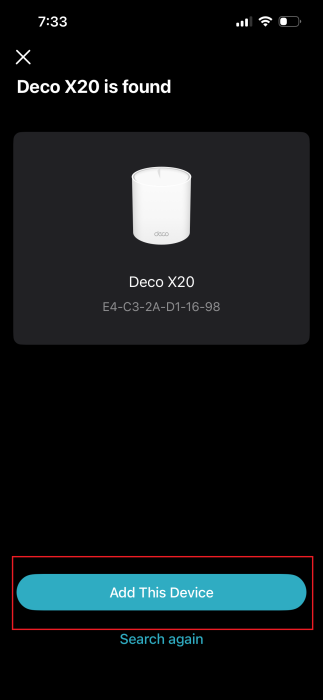
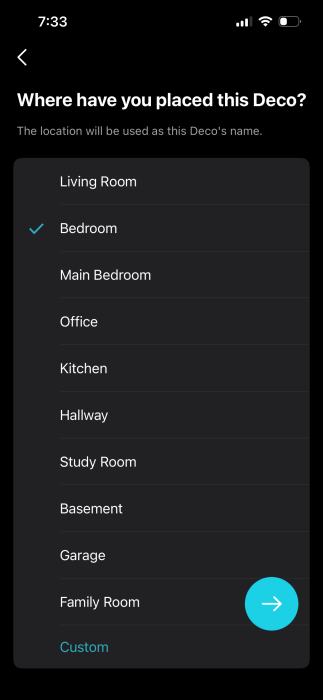
The Deco has been found screen appears - Tap Add this DeviceThe select a Deco location screen appears
- Tap the Blue Arrow
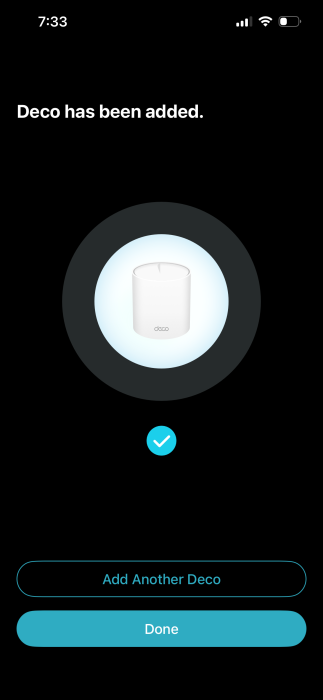
Deco Setup completes
- Tap Done or Add another deco
SuperWiFi network setup is completed